![NextPatient_Logo_RGB_Charcoal (2).png]](https://help.nextpatient.co/hs-fs/hubfs/Logos/NextPatient%20Logos/NextPatient_Logo_RGB_Charcoal%20(2).png?height=31&name=NextPatient_Logo_RGB_Charcoal%20(2).png)
NextPatient's Reputation Management dashboard helps you track patient review activity, monitor your online reputation, and understand how patients are engaging with your review requests.
Access your Reputation Management dashboard
- Log in to your NextPatient account.
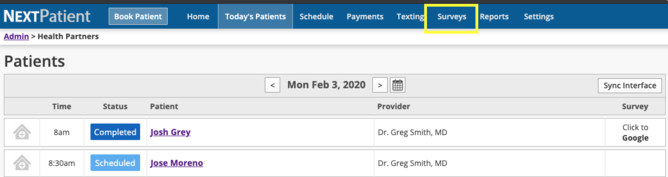
- Click the Surveys tab.
- The Summary view will open by default.
Understand your review activity
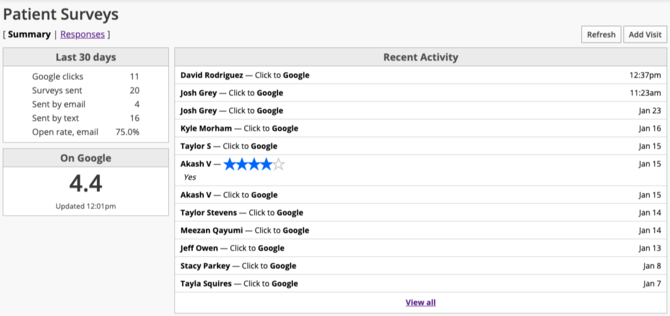
The Summary dashboard provides an overview of your practice's review activity over the past 30 days, including:
- Google Clicks: The number of times patients clicked a link directing them to Google to leave a review.
- Surveys Sent: The number of review requests sent to patients, including a breakdown by text message and email.
- Google Rating: Your practice's current Google rating, when available.
Important: A Google click does not mean a patient submitted a review. It only indicates that someone clicked the link to visit the review page.
Google ratings and reviews can be displayed in NextPatient when your Google Business Profile is connected. Facebook and Healthgrades ratings are not currently imported into the dashboard.
View recent review activity
The Recent Activity section shows information about patient interactions with your review requests.
What appears here depends on whether your practice has connected its Google Business Profile to NextPatient.
If your Google Business Profile is connected
When your Google Business Profile is connected to NextPatient, the Recent Activity section displays reviews left on Google, including:
- The reviewer's Google account name
- Their star rating
- Any comments they included
- The date the review was posted
You can also click a reviewer's name to see possible patient matches. These matches are based on patients who clicked a review link around the time the Google review was submitted.
Because patients may use different names on Google than they do in your practice's records, possible matches are not confirmed identities. For example, a parent may leave a review following their child's appointment.
To learn how to associate Google reviews with specific appointments and access additional reporting insights, see Link Google reviews to patient visits.
If your Google Business Profile is not connected
If your Google Business Profile isn't connected, the Recent Activity section displays patients who clicked a review link sent by text message or email, as shown in the dashboard example above.
This allows you to see which patients engaged with your review requests, but it does not confirm whether they completed a public review.
To view Google reviews and ratings directly in NextPatient, see Connect your Google Business Profile for step-by-step instructions.
Stay informed with email reports and alerts
Want to keep an eye on patient feedback without checking your Surveys dashboard every day?
NextPatient can send daily email reports summarizing your review activity and low-score alerts notifying your team when a patient submits a rating below your configured threshold.
To learn how to enable and customize these notifications, see Add recipients to the daily survey email and Turn on low score alerts.
Export review data for further analysis
For a broader date range or more detailed analysis, you can export your review data using the Review Requests and Reviews Received reports.
- Navigate to the Reports tab in NextPatient.
- Select Review Requests or Reviews Received, depending on the information you'd like to review.
- Choose your desired date range and export the report as a CSV file.
For more information about the data included in each report, see Report types and how to download them.
Need help?
If you'd like assistance connecting your Google Business Profile or have questions about the information displayed on your Surveys dashboard, please contact your Customer Success Manager.
For instructions on configuring and sending review requests, see Set up and send post-visit review requests.