![NextPatient_Logo_RGB_Charcoal (2).png]](https://help.nextpatient.co/hs-fs/hubfs/Logos/NextPatient%20Logos/NextPatient_Logo_RGB_Charcoal%20(2).png?height=31&name=NextPatient_Logo_RGB_Charcoal%20(2).png)
If you're using NextPatient's post-visit review request feature, we recommend connecting your Google Business Profile to take full advantage of your Reputation Management tools.
Why connect your Google Business Profile?
Once connected, you can:
- Monitor Google reviews in NextPatient: View reviews, star ratings, and comments directly from your Surveys dashboard.
- Identify potential patient matches: NextPatient can suggest which patient visits may be associated with a Google review, helping you better understand patient feedback.
- Receive review notifications: Configure email alerts for low ratings and daily reports to stay informed about your practice's review activity.
- Get more detailed reporting: Link Google reviews to patient visits to analyze feedback by provider, appointment type, and more.
How to connect your Google Business Profile
Step 1: Open your Surveys settings
- Log in to NextPatient.
- Select the appropriate practice location.
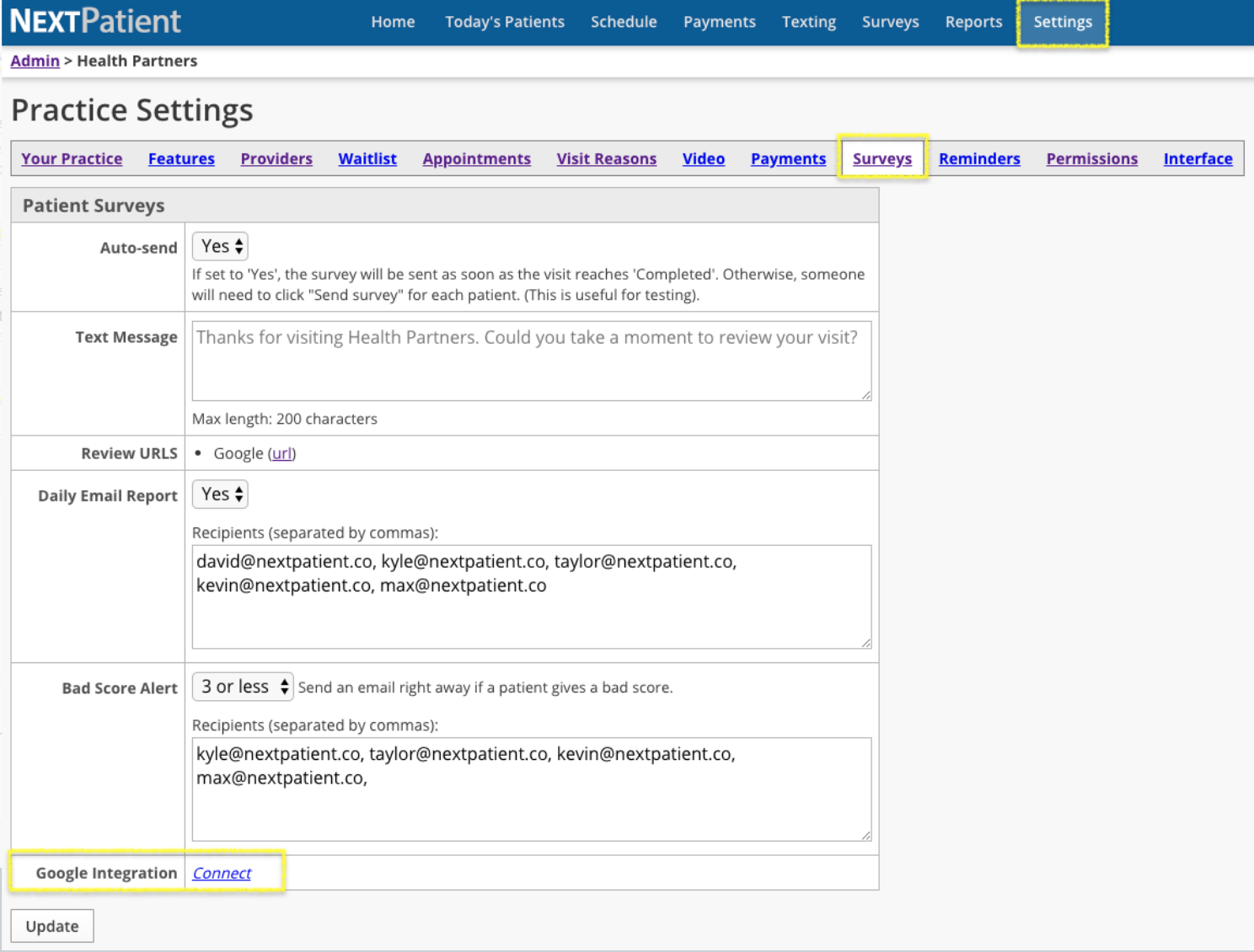
- Navigate to Settings > Surveys.
- Find the Google Integration section and click Connect.
Step 2: Sign in with your Google account
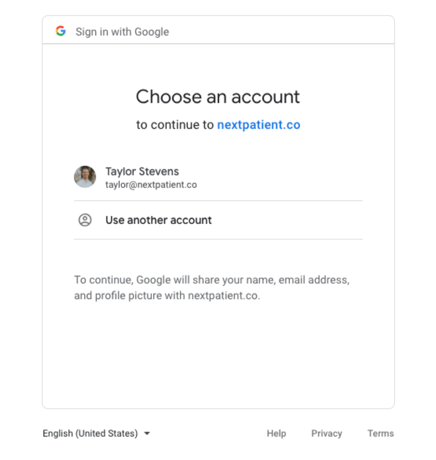
You'll be redirected to Google to authorize the connection.
Sign in using the Google account that has access to manage your practice's Google Business Profile, then follow Google's prompts to authorize NextPatient.
Step 3: Select your business location
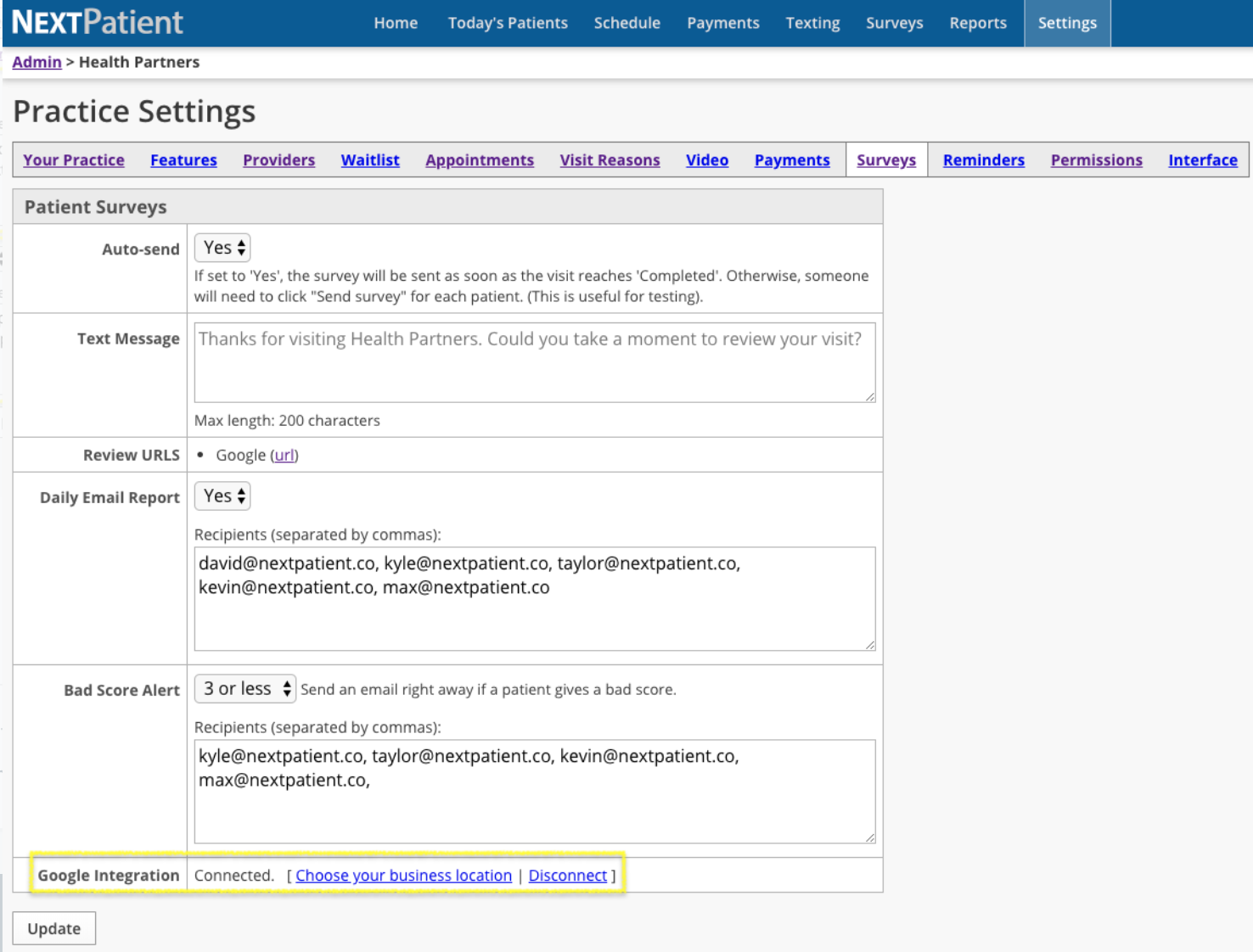
After authorizing your Google account, return to NextPatient and click Choose your business location.
Select the Google Business Profile location that corresponds to your practice.
Don't see the correct location? Make sure you're signed in with a Google account that has access to manage that Business Profile. If needed, click Disconnect and reconnect using a different Google account.
If your practice has multiple locations: Repeat the connection process for each location in NextPatient to ensure reviews are associated with the correct practice.
Step 4: Confirm your connection
Once you've selected your business location, notify your NextPatient Customer Success Manager so they can verify that your Google reviews are importing correctly.
Stay informed about new reviews
After connecting your Google Business Profile, you can configure additional notifications to keep your team informed about patient feedback.
NextPatient offers:
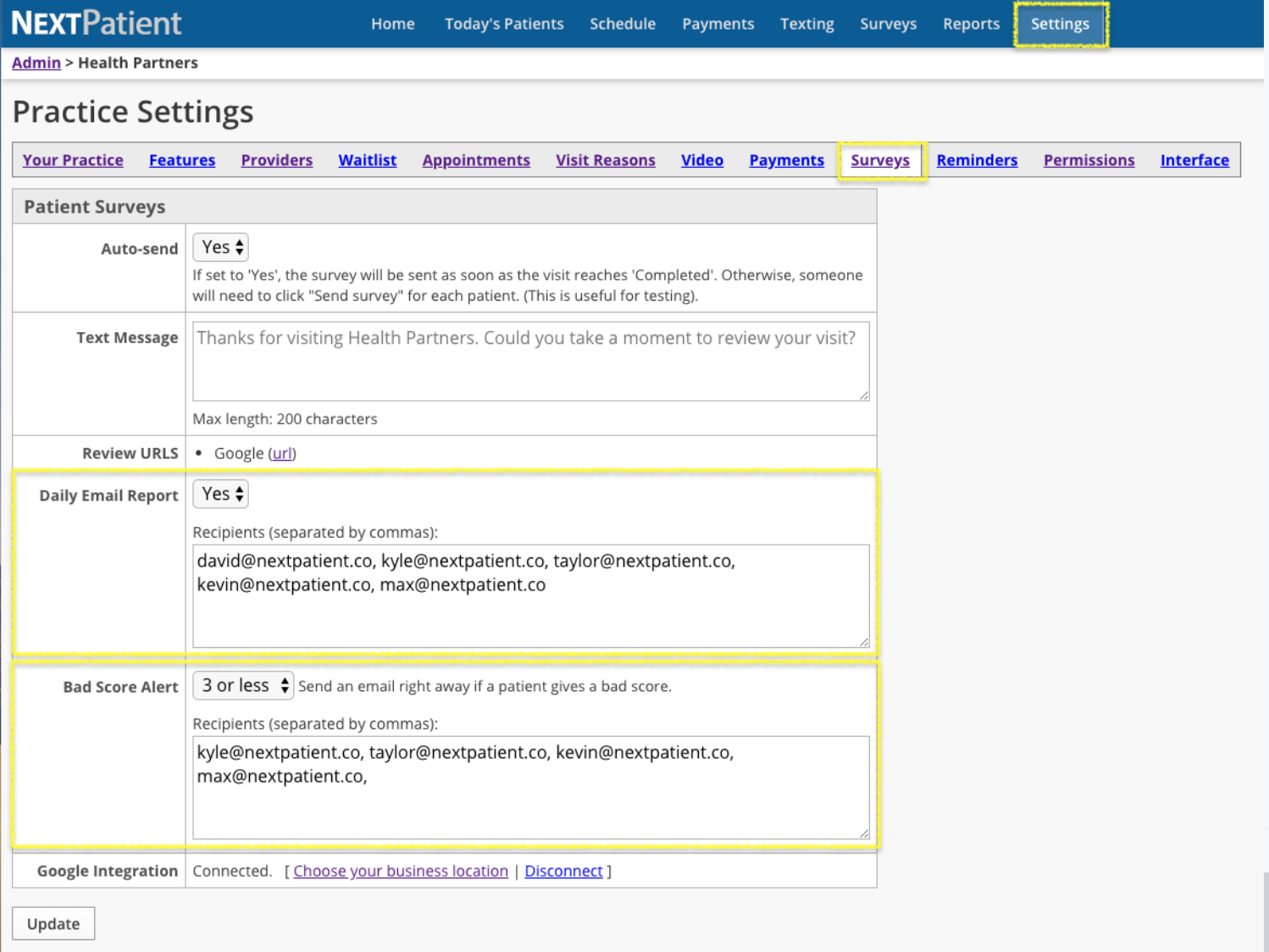
- Daily Email Reports: Receive a summary of your practice's review activity.
- Low-Score Alerts: Receive email notifications when a review or survey rating falls below your configured threshold.
To learn how to set up these notifications, see Add Recipients to the daily survey email and Turn on low survey score alerts. These can be set in Settings > Surveys > Daily Email Report and Bad Score Alert.
You can also learn how to associate reviews with specific appointments in Link Google reviews to patient visits.
Need help?
If you have trouble connecting your Google Business Profile, can't find your business location, or have questions about your integration, please contact your Customer Success Manager for assistance.