![NextPatient_Logo_RGB_Charcoal (2).png]](https://help.nextpatient.co/hs-fs/hubfs/Logos/NextPatient%20Logos/NextPatient_Logo_RGB_Charcoal%20(2).png?height=31&name=NextPatient_Logo_RGB_Charcoal%20(2).png)
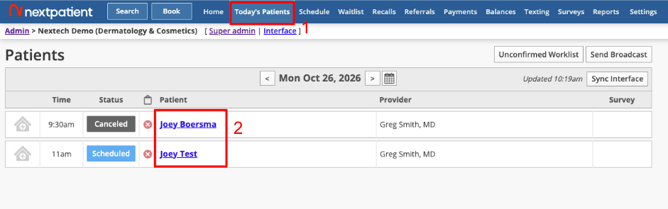
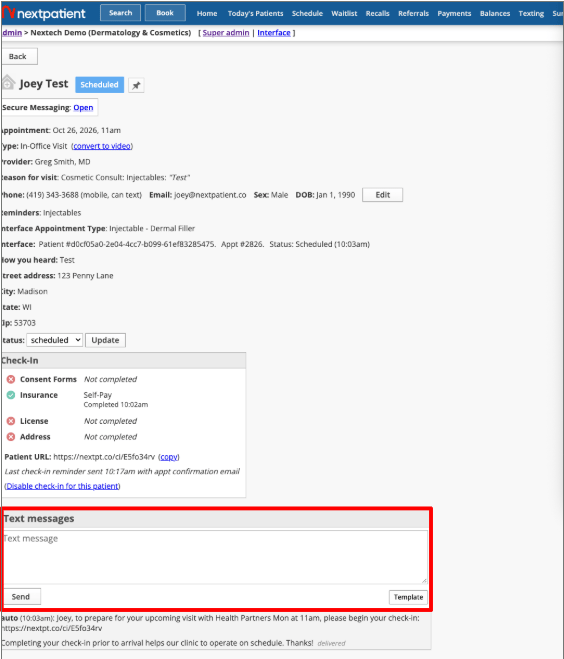
If you would like to text a patient with an appointment already on the schedule you can navigate to the Today’s Patients tab and then click the patient’s name who you’d like to text:
Need to mass message patients on your schedule for a particular day? Check out our Broadcast Messaging guide.
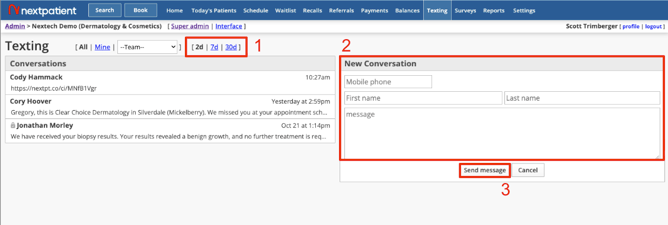
To monitor all of the incoming text messages you can click the Texting menu.
It is important to note that you don't have to access this menu to know if you have a text message from a patient. Alerts are generated both in your browser tab and the texting menu. You can see in the example below, there is one unread text.

In the texting menu, you'll notice there are options for clicking below.
-
Allow for you to expand and see texts from 2, 7 and 30 days out from today
-
New conversation allows for you to input a new mobile number and send a two-way text
-
Allow for you to send the message you've written above and tracked in the conversation thread below. Note the auto messages are also displayed
If Laura's message had been new and unread, it would be in yellow.
If patients text you, you don't have to stay on the browser tab to be notified. The tab at the top of the browser will create a notification, too. See the example below.

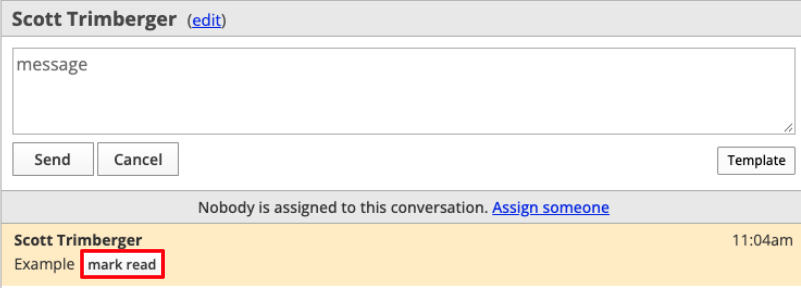
Once you respond to the message, make sure to "mark read" and then you're done!