![NextPatient_Logo_RGB_Charcoal (2).png]](https://help.nextpatient.co/hs-fs/hubfs/Logos/NextPatient%20Logos/NextPatient_Logo_RGB_Charcoal%20(2).png?height=31&name=NextPatient_Logo_RGB_Charcoal%20(2).png)
What are discount codes?
Discount codes let patients enter a promo code on your booking form to get a lower price on specific appointment types. You set the code and the discounted price for each appointment type it applies to, and patients see that price when they enter the code while booking.
Discount codes work with payments collected at booking. If you haven't set up payments yet, start with: Set up payments at booking.
Common ways practices use discount codes
- Seasonal or holiday promotions on cosmetic services
- Special pricing for a specific consultation type
- Offers shared through email campaigns, social media, or community events
How to turn on discount codes
Your account manager can help you set this up.
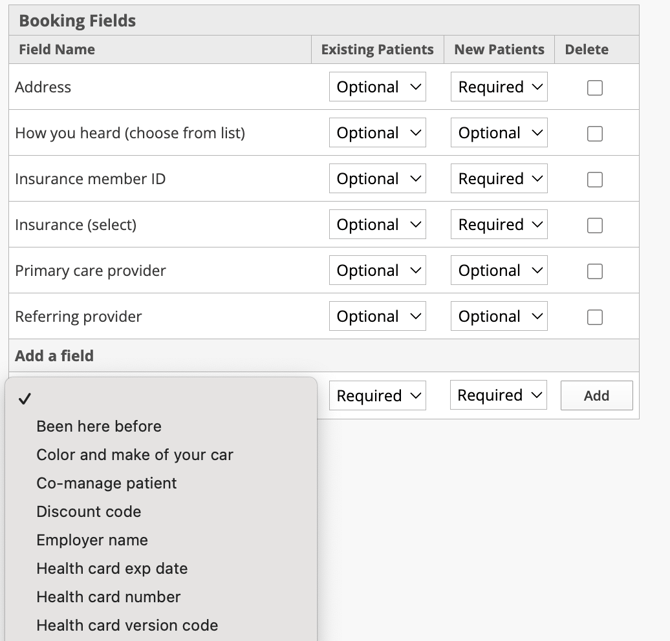
- Ask your account manager to add the Discount code field to your booking form.
- They'll turn on the field. It's optional, so patients without a code can book as usual.
- Once it's on, you can add your codes using the steps below.
How to add a discount code
- Go to nextpatient.co and click Log in.
- In the top blue menu bar, click Settings.
- In the secondary menu bar under Practice Settings, click Visit Reasons.
- Next to Discount codes, click configure. This opens the Discount Codes page.
- Next to Add code, type the code patients will enter (for example, SPRING25) and click Submit.
- Next to Add discount, choose:
- The code you just created.
- The visit reason the code applies to.
- The discounted price patients will pay for that visit reason.
- Click Submit.
- Repeat steps 5 and 6 for each visit reason the code should apply to.
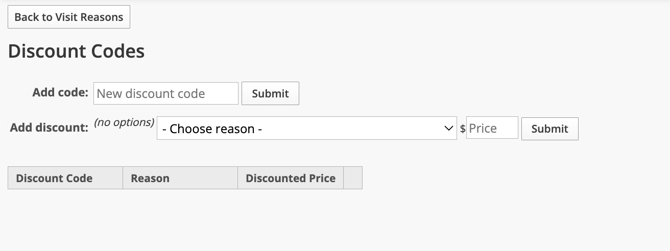
Your codes appear in the table below the Add code and Add discount fields, with each visit reason and its discounted price. Click edit next to a row to change it.
To turn a code off without deleting it, click Hidden under the code in the table. Click Live to turn it back on.
Note: Enter the final price the patient will pay, not the amount taken off. For example, if a consultation is normally $150 and you want to offer $25 off, enter 125.
FAQs
Do patients have to enter a discount code to book?
No. The discount code field is optional, so patients without a code can book as usual.
Can one code apply to more than one appointment type?
Yes. Add a discount for each visit reason the code should cover. Each visit reason can have its own discounted price.
Can I set a percentage off instead of a price?
Not at this time. Each discount is set as a specific price for a visit reason. To offer a percentage off, calculate the discounted price for each visit reason and enter that amount.
Why don't I see a discount code field on my booking form?
The field needs to be turned on first. Ask your account manager to add it to your booking form.
Can I turn off a code when a promotion ends?
Yes. In the table of codes, click Hidden under the code. Patients can no longer use it, and you can click Live to turn it back on later.
Best practices
- Keep codes short and easy to type, without spaces or special characters, so patients enter them correctly.
- Add the code to every visit reason your promotion covers before you announce it.
- Book a test appointment on your booking widget to confirm the code shows the right price.
- Use a new code for each promotion so you can tell your offers apart.
- Set a code to Hidden when its promotion ends, so patients can't keep using it.