![NextPatient_Logo_RGB_Charcoal (2).png]](https://help.nextpatient.co/hs-fs/hubfs/Logos/NextPatient%20Logos/NextPatient_Logo_RGB_Charcoal%20(2).png?height=31&name=NextPatient_Logo_RGB_Charcoal%20(2).png)
Overview
Secure texting enables HIPAA-compliant patient communication for workflows that traditionally require phone calls or portal logins. By securely sending texts, photos, and documents, communication is streamlined for sharing sensitive information like lab results, prescription refills, and insurance verification. To create clear ownership of patient conversations, you can also create texting teams to manage patient messages.
How does secure texting differ from two-way texting?
Secure texting allows for the communication of protected health information, which is not appropriate for standard two-way texting. Messages are delivered via a secure link sent by text, and patients must verify their date of birth to access the content.
Open texting
- Go to nextpatient.co and click Log in.
- Once logged in, you'll see your practice's locations listed on the admin screen. Each location has its own SMS number, so a patient's reply always lands in that location's inbox. Choose the location you want to view first.
- In the top blue menu bar, click Texting.
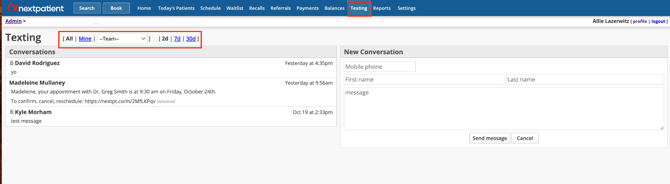
From here you can:
-
Toggle between viewing 2, 7, or 30 days of conversations
-
View everyone's conversations at that location, or just the ones you started
-
Switch to a different team's messages using the team dropdown
-
New messages trigger a notification next to Texting in the top blue menu bar and appear highlighted in yellow in the Conversations inbox.
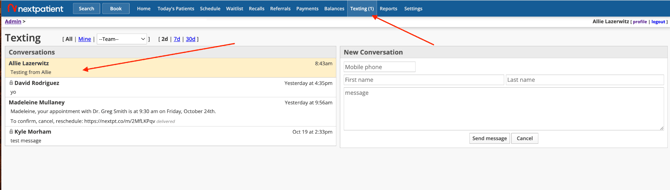
Tip: Look for the lock icon next to messages in the Conversations inbox — it marks which conversations are secure.
Send a patient a secure message
- There are two ways to find a patient from the top blue menu bar:
- Click Today's Patients and locate the patient
- Click the Search button to look up by the patient's name or date of birth
- From the patient's appointment page, click Open next to Secure Messaging.

Once a patient reads your message, the Read receipt appears when you open the conversation from their visit or patient page.

Want to assign this conversation to a team instead of just yourself, or set your default texting team going forward? See how to create texting teams and manage patient messages.
Tip: Writing the same type of message often? Save time with SMS templates instead of typing it out each time.
Save a conversation to your EHR
Note: Saving patient conversations is only available if your EHR or practice management system is athenahealth, ModMed, Nextech Select, or Nextech Practice+.
1. To save a conversation in your EHR or practice management system, click Save inside the secure texting conversation.

2. You'll be prompted to choose which messages to save. Check the boxes for the messages you want, click Save, and then close the window.

Understanding what the patient sees
Unsecure messages send as a normal SMS text
Secure messages instead send the patient a link

To view a secure message, the patient clicks the link and enters their date of birth to verify their identity. Your message will then open in their browser.
 |
 |
From there, the patient can reply using the text box, or click the photo icon in the bottom right to take or upload a photo and send it.

When patients respond, new messages show up in your Conversations inbox.

FAQs
Is the Save feature available for regular (non-secure) SMS conversations?
No. Save only works for secure texting conversations. If staff need to document something sensitive, like an insurance card, the recommended approach is to move that conversation into a secure thread first, then save it from there.
If I save a conversation that's already been saved before, does it create a duplicate?
Yes, saving generates a new PDF each time — it isn't a running update to a single saved document. Each save should reflect a distinct interaction, so it's best to only save the specific messages relevant to that particular exchange rather than re-saving older content.
What does a saved conversation look like in my practice management system?
It's compiled as a PDF titled "Secure Texting," timestamped with the date and time it was saved (not the time the individual messages were sent). It generally lands in the Documents tab — for Nextech specifically, it currently files under a "Miscellaneous" category. The PDF includes timestamps and read receipts for each message, matching what's shown in the conversation view.
Which practice management systems support the Save feature?
athenahealth, ModMed, Nextech Select, and Nextech Practice+. It isn't currently available for AdvancedMD and DrChrono.
Does NextPatient follow up automatically if a patient doesn't read a secure message?
Yes. If a patient hasn't opened their secure message, NextPatient sends an automatic reminder 24 hours later, and again 24 hours after that if it's still unread (two reminders total).
If I switch to a different patient while composing a secure message, will my draft still be there?
No. The secure message window resets when you switch patients, and any partially written message will be cleared. Send or finish your message before navigating to another patient if you want to keep it.
Can I look up a patient by date of birth instead of name?
Yes. Patient search supports looking someone up by date of birth, which is often faster and avoids spelling issues with names.