![NextPatient_Logo_RGB_Charcoal (2).png]](https://help.nextpatient.co/hs-fs/hubfs/Logos/NextPatient%20Logos/NextPatient_Logo_RGB_Charcoal%20(2).png?height=31&name=NextPatient_Logo_RGB_Charcoal%20(2).png)
Before logging in to NextPatient for the first time, you'll need to make sure an account has been created for you.
If you're unsure whether you have an account, check with your practice's NextPatient administrator or contact your Customer Success Manager.
Step 1: Access the NextPatient login page
Visit nextpatient.co/admin to access the NextPatient login page.
You can also navigate to the login page using the "Log in" button in the top right of the NextPatient homepage.
Step 2: Set up your password
On the login screen, click Reset Password.
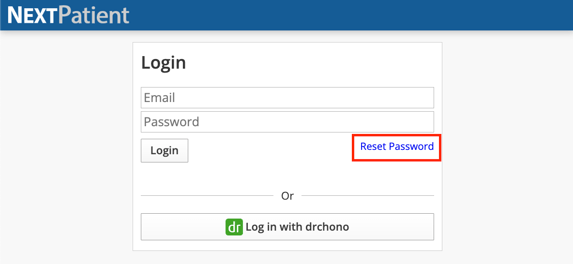
Even if you haven't logged in before, you'll use this option to create your initial password.
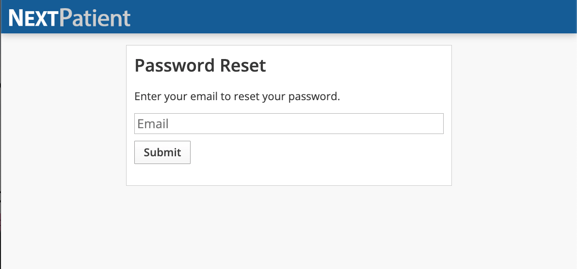
Enter the email address associated with your NextPatient account and follow the prompts to request a password reset email.
Step 3: Check your email
You'll receive an email with instructions to create your password.
Follow the link in the email to set your password.
Don't see the email? Allow up to five minutes for it to arrive, and check your spam, junk, or filtered email folders.
Step 4: Log in to NextPatient
Once you've created your password, return to nextpatient.co/admin and log in using your email address and new password.
You may be prompted to enter a six-digit verification code sent to your email as part of NextPatient's two-factor authentication (2FA) process.
For more information, see Log in with two-factor authentication.
Need help?
If you don't receive your password setup email, have trouble logging in, or need assistance accessing your account, please contact your practice's NextPatient administrator, your Customer Success Manager, or email help@nextpatient.co.