![NextPatient_Logo_RGB_Charcoal (2).png]](https://help.nextpatient.co/hs-fs/hubfs/Logos/NextPatient%20Logos/NextPatient_Logo_RGB_Charcoal%20(2).png?height=31&name=NextPatient_Logo_RGB_Charcoal%20(2).png)
When NextPatient calculates wait times, different lengths of time are added based on an appointment’s status:
| Appointment status | Stage | Shown on waiting room screen? | Added to wait time |
|---|---|---|---|
| Scheduled | Waiting | Yes | Full minutes per patient |
| Arrived | Waiting | Yes | Full minutes per patient |
| Checked In | Waiting | Yes | Full minutes per patient |
| Intake | Being seen | No | Half of minutes per patient |
| In Room | Being seen | No | Half of minutes per patient |
| In Progress | Being seen | No | Half of minutes per patient |
| Completed | Done | No | Nothing |
| No Show | Done | No | Nothing |
| Canceled | Done | No | Nothing |
Example: If Minutes per patient is set to 10, and you have 2 patients checked in and 1 patient in a room, the wait time would be 25 minutes (10 + 10 + 5).
This box is located in the top right corner of the “Home” page in NextPatient.
If the wait time for a location looks off, it’s always a good idea to check here first!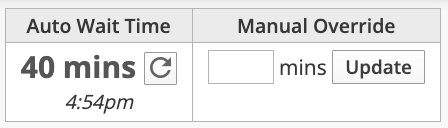
If there are any numerical values in the manual override box, NextPatient will override any auto wait time to match this numerical value.
Wait time calculation: Minutes per patient
This setting is located in Settings → Online Queue.
We like to ask, “For every patient that is added to your schedule, how much time would you like to add to the office’s wait time?”. The time that is entered into this field will directly affect the wait time based on the status of the appointments on your schedule (see table at top of page for time calculations based on appt status).
Wait time calculation: Minimum wait
This setting is located in Settings → Online Queue.
The minimum wait is the baseline wait time that you would like to display if there are no patients in your queue. If you would like the wait time to read “No Wait”, then you can keep this blank. If you would prefer the wait time to read “10 minutes” even if there are no patients waiting to be seen, then you should enter “10” in this field.
Min wait for sign-up
This setting is located in Settings → Online Queue.
This time will be displayed if you would like a specified length of wait time to be required before letting patients add themselves to the queue.
For example, you want to encourage patients to walk into the office for an appointment if the wait time is 30 minutes or less, but if the wait time is more than 30 minutes long, you want patients to be able to sign up for the queue online. Then, you would want to set ‘30’ in this settings field in NextPatient. That way, if the wait is less than 30 minutes long, a patient cannot get in line for the queue using the online tool.
End-of-day buffer
This setting is located in Settings → Online Queue.
The End-of-day buffer is the number of minutes before closing that you want to stop online sign-ups. This keeps patients from joining the queue too late for your team to see them. The cutoff is this number plus your visit length. For example, if you enter 30 and your visit length is 15 minutes, patients won’t be able to sign up online during the last 45 minutes before close.