![NextPatient_Logo_RGB_Charcoal (2).png]](https://help.nextpatient.co/hs-fs/hubfs/Logos/NextPatient%20Logos/NextPatient_Logo_RGB_Charcoal%20(2).png?height=31&name=NextPatient_Logo_RGB_Charcoal%20(2).png)
Overview
If one provider’s photo in your scheduling widget looks larger, stretched, or a different shape than the others, the cause is usually that provider’s public bio. When a bio runs long, the provider’s card in the widget gets taller to fit the text, and the photo stretches with it.
The fix is to shorten the bio. The photo itself doesn’t need to change.
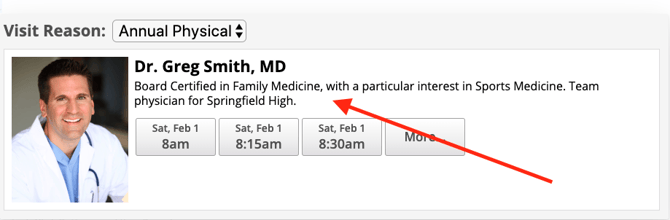
How to shorten a provider’s public bio
1. Go to nextpatient.co and click Log in.
2. In the top blue menu bar, click Settings.
3. In the secondary menu bar under Practice Settings, click Providers.

4. Scroll down to the Existing providers section and click Edit next to the provider whose photo looks stretched.
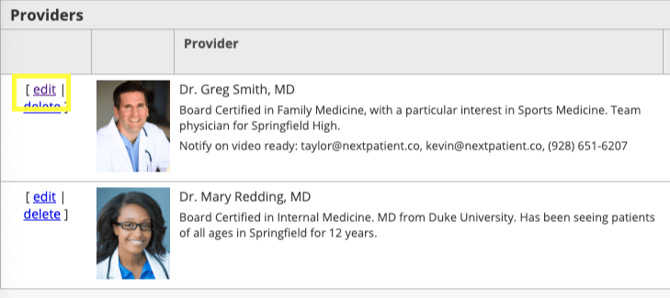
5. Shorten the text in the Public Bio field.
6. Click Update at the bottom of the page.
Tip: If the photo still looks stretched after you save, your browser or website may be showing a cached version of the widget. For how to clear it, see: Fix a widget showing outdated times.
FAQs
Why does only one provider’s photo look different?
Because that provider’s bio is longer than the others. Each provider’s card sizes itself to fit their bio, so one long bio makes one card, and one photo, larger than the rest.
Do I need to upload a new photo?
No. Shortening the bio fixes the stretching. If you do want a new or updated photo, see: Add or update a provider photo.
What if the photo still looks wrong after I shorten the bio?
Clear your cache first (see the tip above). If it still looks off, reach out to your account manager.
Best practices
- Keep public bios short in the widget: a sentence or two on specialty and focus is enough for patients choosing who to book with.
- Keep bios a similar length across providers so every card, and every photo, lines up evenly.
- Save the full bio for the provider’s page on your website, where there’s room for it.