![NextPatient_Logo_RGB_Charcoal (2).png]](https://help.nextpatient.co/hs-fs/hubfs/Logos/NextPatient%20Logos/NextPatient_Logo_RGB_Charcoal%20(2).png?height=31&name=NextPatient_Logo_RGB_Charcoal%20(2).png)
Default review request message
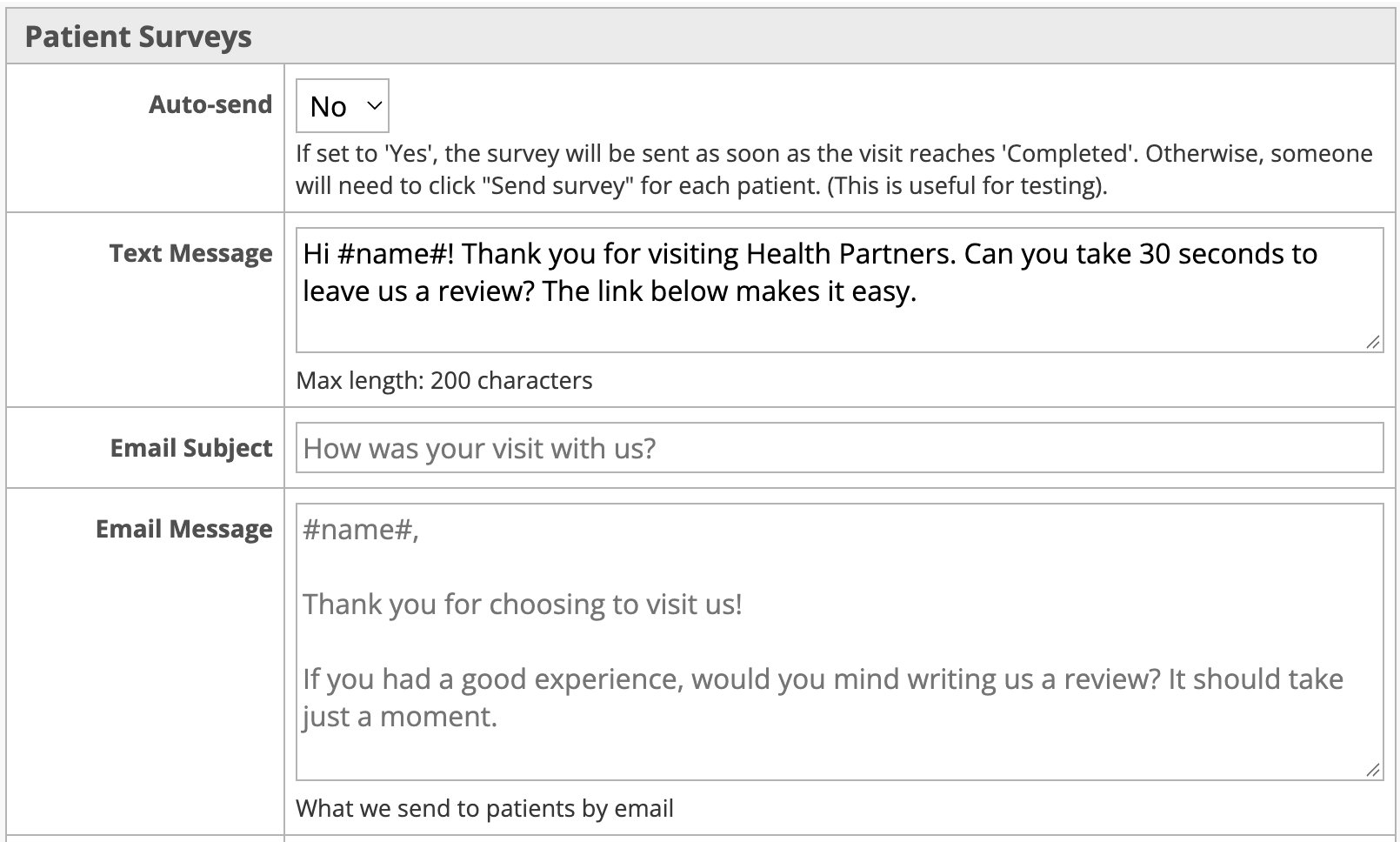
When Reputation Management is first set up, your review requests include a default message, shown in the screenshot below.
You can update these messages at any time.
How to customize your messages
- Log in to your NextPatient account.
- Click the Settings tab.
- Select the Surveys tab.
- Locate the message fields under Patient Surveys.Depending on your practice's configuration, you may see some or all of the following fields:
- Text Message: The message patients receive when a review request is sent by text.
- Email Subject: The subject line patients see when a review request is sent by email.
- Email Message: The body of the email patients receive.
- Edit the available fields to customize your message. Be sure to keep the
#name#token wherever you'd like the patient's name to appear. - Save your changes to apply your updated messaging to future review requests.
Tips for writing an effective review request
We recommend keeping your messages short, friendly, and easy to understand.
- Keep it simple. A brief thank-you and a clear request for feedback work best.
- Make it personal. Use
#name#to personalize your message with the patient's name. - Be mindful of character limits. Text messages have a maximum length of 200 characters.
- Encourage honest feedback. Invite patients to share their experience, whether positive or negative.
Example text message:
Hi #name#! Thank you for visiting [Practice Name]! We'd love to hear about your experience. Please take a moment to leave us a review using the link below.
Why does my Settings page look different?
The fields available on your Surveys settings page depend on how your practice's review requests are configured.
Some practices send requests by text message, others by email, and some use a combination of both. You'll only see the message fields relevant to your practice's configuration.
If your settings look different from the screenshot above, or you'd like to discuss how review requests are delivered to your patients, please reach out to your Customer Success Manager for assistance.