![NextPatient_Logo_RGB_Charcoal (2).png]](https://help.nextpatient.co/hs-fs/hubfs/Logos/NextPatient%20Logos/NextPatient_Logo_RGB_Charcoal%20(2).png?height=31&name=NextPatient_Logo_RGB_Charcoal%20(2).png)
Overview
The booking widget lets patients see your open appointments and book online right from your website. If your site runs on WordPress, you can add the widget to any page by pasting your widget code into a Shortcode block.
Note: If you work with a web developer or website maintenance company, we recommend having them add the widget. They know how your site is built and can make sure the change doesn’t affect anything else on the page.
Before you start
You’ll need:
- Your widget code. If you don’t have it, your account manager can send it to you.
- A WordPress login with permission to edit pages on your site.
How to add the booking widget to a WordPress page
1. Log in to your WordPress dashboard. It’s usually at yourdomain.com/wp-admin.
2. In the left-hand menu, click Pages.
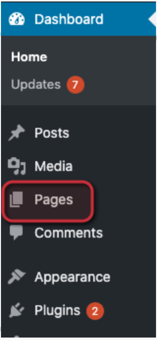
3. Click the page where you want the widget to appear, like your home page or a location page.
4. Click the spot on the page where you want the widget, then add a Shortcode block:-
- Click the + near the top-left corner, scroll down to the Widgets section, and click Shortcode.
- Or type /shortcode on an empty line and press Enter.
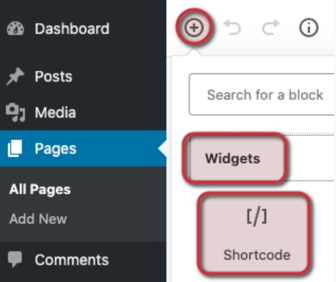
5. Paste your widget code into the Shortcode block.

6. Click Preview in the top-right corner to check how the page looks.
7. When the page looks the way you want, click Save in the top-right corner.
Tip: After you publish, open the page in a new browser window to confirm the widget shows up the way patients will see it.
FAQs
Where do I find my widget code?
Your account manager can send it to you. If your practice has more than one location, ask which code belongs on which page.
Can I add the widget to more than one page?
Yes. Repeat these steps on each page where you want patients to be able to book, such as your home page and each location page.
My site uses a page builder like Elementor or Divi. Do these steps still work?
Not exactly. These steps are for the standard WordPress block editor. Most page builders have their own block for adding code. If you’re not sure which one to use, check with your web developer or reach out to your account manager.
The widget is on my site but isn’t showing current appointment times. What’s wrong?
A caching plugin is usually the cause. To clear your cache and exclude the widget from caching, see: Fix a widget showing outdated times.
Can I change how the widget looks?
Yes. You can show providers in multiple columns, add a location dropdown for multi-location practices, or add a booking widget to provider bio pages.