![NextPatient_Logo_RGB_Charcoal (2).png]](https://help.nextpatient.co/hs-fs/hubfs/Logos/NextPatient%20Logos/NextPatient_Logo_RGB_Charcoal%20(2).png?height=31&name=NextPatient_Logo_RGB_Charcoal%20(2).png)
Overview
When patients search for your practice on Google, your Google Business Profile is often the first thing they see. Adding your NextPatient online scheduling link to that profile puts a booking link right on your listing in Google Search and Google Maps. Patients can go from searching for you to picking an appointment time in one click.
Setup takes about five minutes, and you only need access to your practice’s Google Business Profile.
Note: Google Business Profile used to be called Google My Business. If you see the old name in older guides or emails, it’s the same thing.
How does this differ from Reserve with Google?
A booking link sends patients from your Google listing to your online scheduling page. Reserve with Google adds a Book button that lets patients book without leaving Google. To learn more, see the Reserve with Google FAQ.
How to add your booking link
Before you start, have your NextPatient online scheduling link ready. If you’re not sure which link to use, your account manager can share it.
- Sign in to your Google Business Profile. You can search for your practice name on Google while signed in, or go to business.google.com.
- If you manage more than one profile, select the location you want to update.
- Click Edit profile.
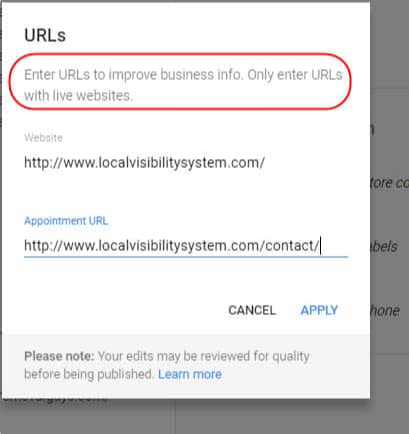
- Find the appointment link field. Depending on how Google displays your profile, it appears in one of two places:
a. Under Business information, click the Contact tab and find Appointment links.
b. Click Bookings, then choose the option to add links to your online booking tools. - Paste your online scheduling link into the field.
- Click Save.
Once Google publishes your update, your profile shows a link that takes patients straight to your online scheduling.
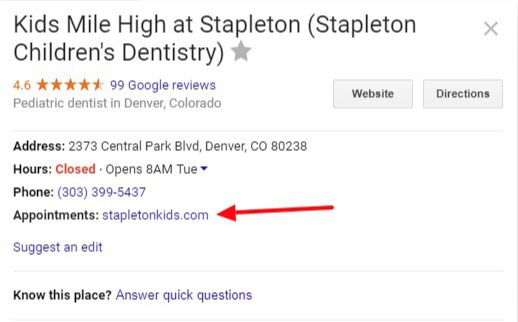
Note: Google can take a little time to review and publish changes. If the link doesn’t appear right away, check back later.
Tip: If your practice has more than one location, each location has its own Google Business Profile. Update each one, and use the scheduling link for that location if you have one.
FAQs
Do I need to do anything in NextPatient to add a booking link?
No. You add the link in Google Business Profile. Your NextPatient online scheduling link works as is.
Why isn’t my booking link showing on Google yet?
Google reviews profile edits before publishing them, which can take some time. If the link still isn’t showing after a few days, confirm it was saved in your profile and that the URL opens your online scheduling page.
Can I add a link for each of my locations?
Yes. Each location’s Google Business Profile has its own appointment link field, so update each one separately.
What’s the difference between a booking link and Reserve with Google?
A booking link opens your online scheduling page. Reserve with Google lets patients book directly inside Google Search and Maps. See the Reserve with Google FAQ for details.
Best practices
- Link straight to your online scheduling page, not your homepage, so patients land where they can book.
- Use the location-specific link on each location’s profile so patients see the right providers and times.
- Fill out the rest of your profile too: hours, phone number, website, and photos help patients choose you.
- Test the link from Google Search and Google Maps after it goes live.